

Many of the tabs on an event page list their items as cards: a card for each attendee on the Staff tab, each shipment on the Shipments tab, each activity in the Playbook, and so on. A card can also have notes (or a description) and attachments. On a busy event, that’s a lot to scroll through.
The “Default Card View on Event Tabs” workspace setting lets you choose how cards look when someone opens an event tab: Compact, with notes, descriptions, and attachments tucked away until you need them, or Expanded, with everything showing right away.
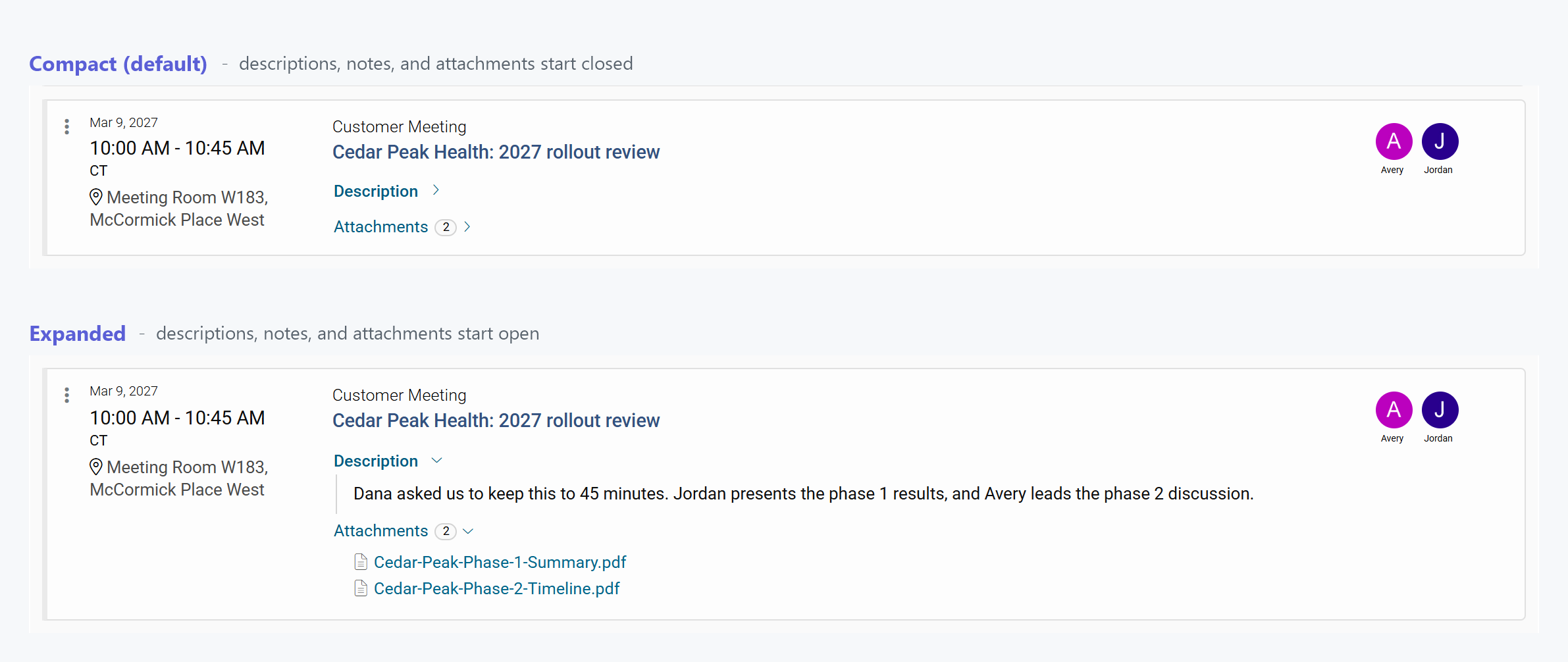
Compact (default setting)
Compact is the default / recommend view. Each card shows the essentials, like the title, time, location, and who’s involved. Instead of the full notes, description, and attachments, the card shows a “Notes”, “Description”, or “Attachments” link. The number next to “Attachments” tells you how many files the card has.
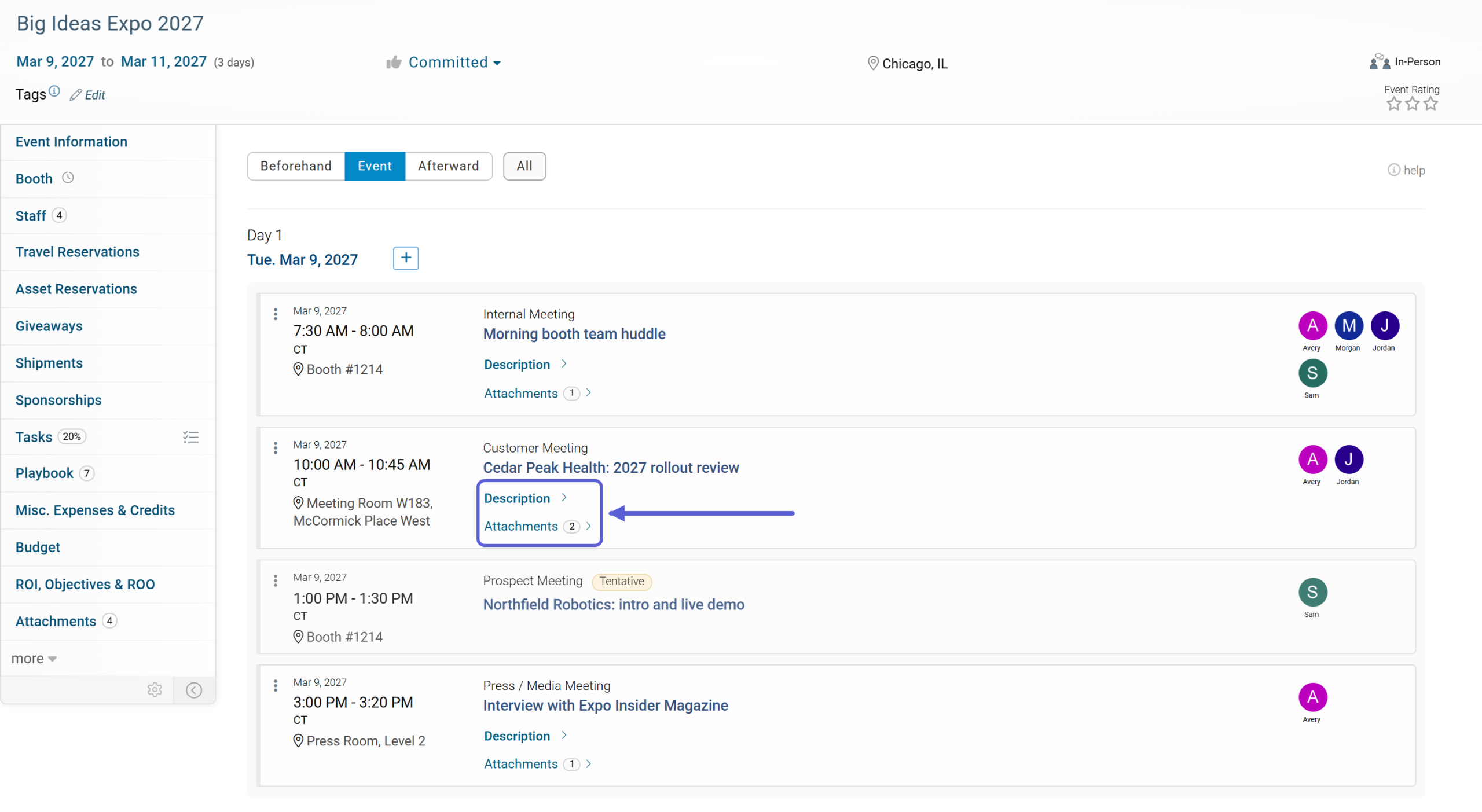
This keeps event tabs short and easy to scan. In the Playbook, for example, you can see the whole day’s schedule at a glance.
To see what’s in a section, just click its name. It opens right there on the card. Click it again to close it.

Note: Only the section you click opens; the rest of the cards stay compact. When you come back to the tab later, the cards start out compact again.
Expanded
In Expanded view, every card opens with its notes, description, and attachments already showing. This works well if your team relies on those details and would rather read everything without clicking, like a quick look at everyone’s travel notes before the show.

You can still click a section’s name to close it.
Where the Setting Applies
The setting applies to cards on these event tabs:
- Booth: booth services (notes and attachments)
- Staff: notes and attachments
- Travel Reservations: notes and attachments
- Asset Reservations: attachments
- Giveaways, Shipments, and Sponsorships: notes and attachments
- Misc. Expenses & Credits: notes and attachments
- Playbook: descriptions and attachments
Here’s the Staff tab in Compact view:

And here’s the same tab in Expanded view:

Note: A card only shows a section when there’s something in it. For example, a card without attachments doesn’t show an “Attachments” link.
Changing the Default Card View
The setting applies to everyone in your workspace, so it’s managed in Workspace Settings by users who can manage your workspace (typically workspace admins).
To change it, click the gear icon at the top right of any page, then click “Workspace Settings”.

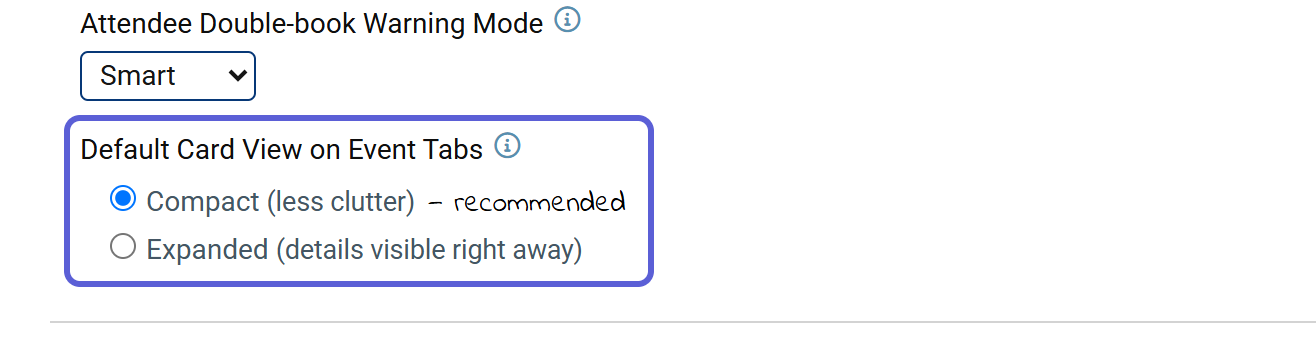
Under “Default Card View on Event Tabs”, select “Compact” or “Expanded”. Then scroll down and click “Save Changes”.
The next time anyone in your workspace opens an event tab, the cards appear in the view you chose.
Tip: Not sure which one to pick? Start with Compact. Anyone who wants more detail is always one click away from it.