

For a lot of teams, meetings are an essential part of going to a conference or trade show. A half-hour sit-down with a key customer, a first conversation with a prospect, or a quick interview with a trade publication can be worth more than a week of booth traffic. They’re also the easiest part of a show to lose track of: they get set up over email, live in a dozen different calendars, and the notes end up in someone’s notebook.
In ExhibitDay, you can plan and track every meeting for an event in the event’s Playbook, right alongside your booth shifts, presentations, and receptions. Each meeting has its own type, status, time, location, and attendees, plus a place for the purpose and agenda before the meeting and the outcome and next steps after it.
Adding a Meeting to the Playbook
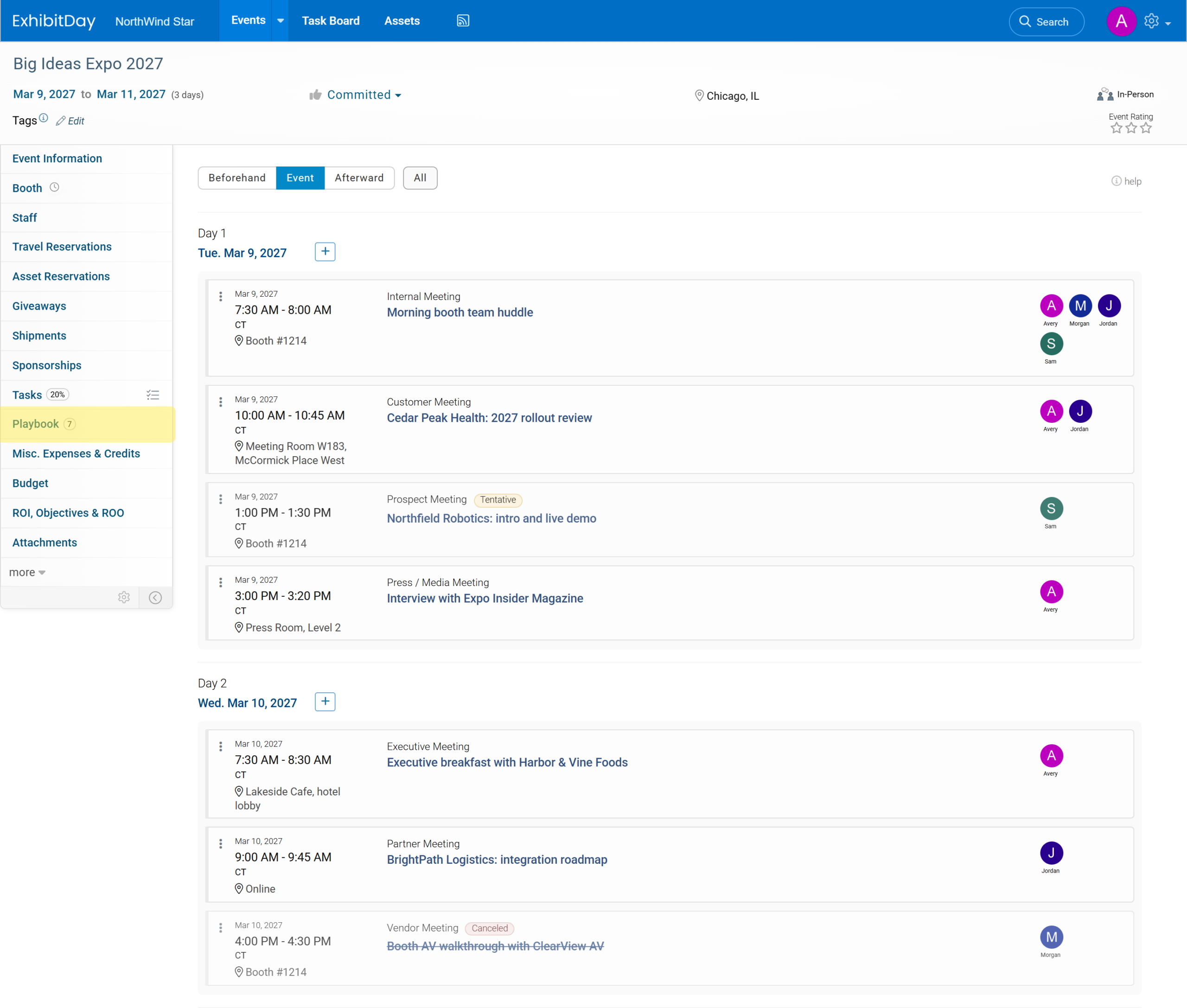
To add a meeting, go to the event page and click the “Playbook” tab. Each day of the event (plus a few days before and after it) has its own “+” button. Click the “+” next to the day the meeting takes place.

Tip: Use the “Beforehand”, “Event”, “Afterward”, and “All” buttons at the top of the Playbook to choose which days are shown. You can also change how many days before and after the event are included.
Choosing the Type of Meeting
In the “Add Playbook Entry” dialog, open the “Activity Type” dropdown. To find the meeting types quickly, type “meeting” in the search box.
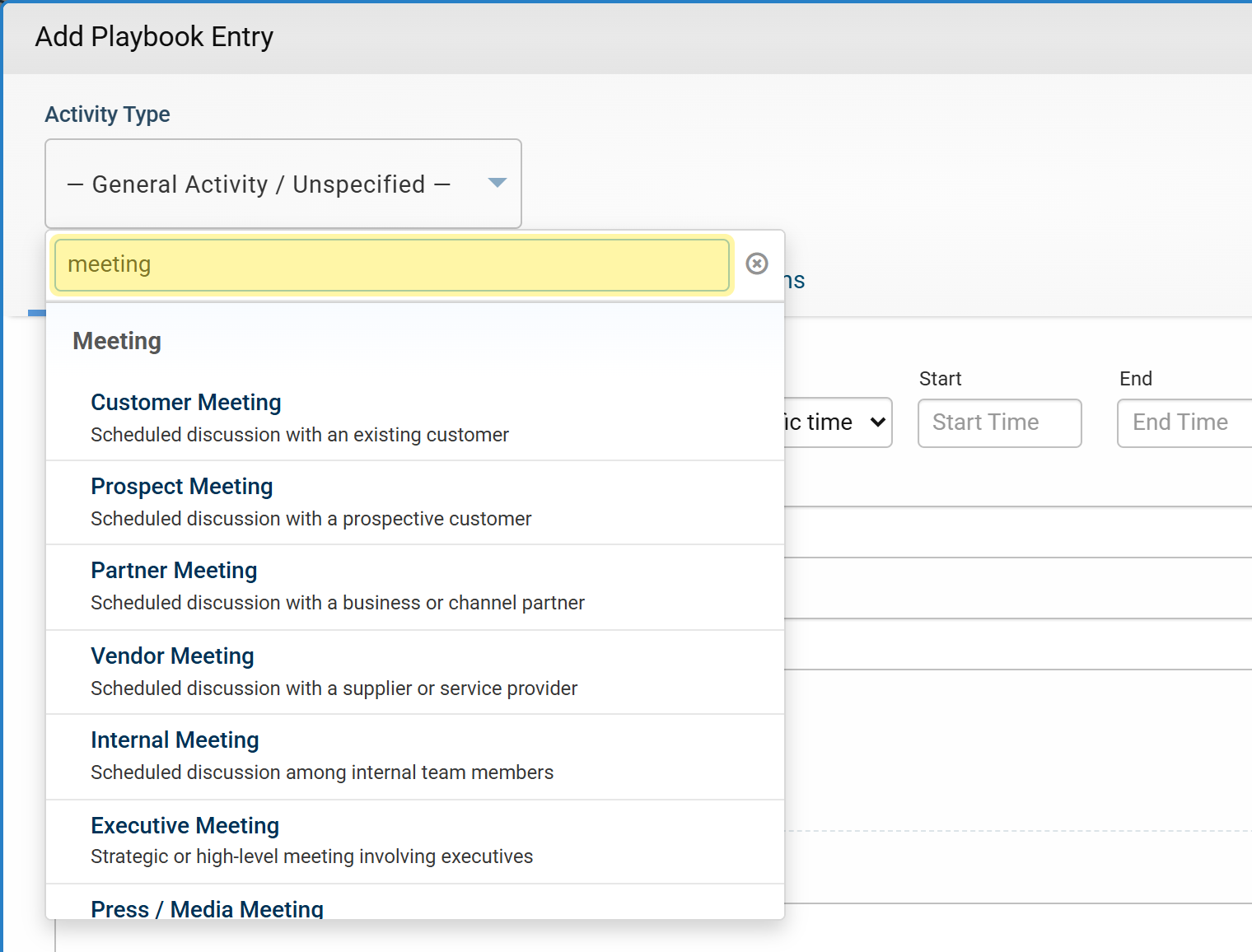
There are eight types of meetings to choose from:
- Customer Meeting: a scheduled discussion with an existing customer.
- Prospect Meeting: a scheduled discussion with a prospective customer.
- Partner Meeting: a scheduled discussion with a business or channel partner.
- Vendor Meeting: a scheduled discussion with a supplier or service provider.
- Internal Meeting: a discussion among your own team members (for example, a morning booth huddle).
- Executive Meeting: a strategic or high-level meeting involving executives.
- Press / Media Meeting: an interview, briefing, or discussion with media representatives.
- Other: any other scheduled meeting.
The meeting type is displayed on the Playbook schedule, so everyone can tell at a glance what kind of meeting it is.
Tip: Planning a dinner with a customer? Use the “Dinner” type under “Meal / Break” instead. It comes with fields for things like the reservation, seating, guests, and dietary notes.
Setting the Meeting’s Status
Use the “Activity Status” dropdown to show where the meeting stands:
- Confirmed: the meeting is finalized and expected to happen as scheduled.
- Tentative: the meeting is still being planned, or you’re waiting for the other party to confirm.
- Canceled: the meeting is no longer expected to happen.
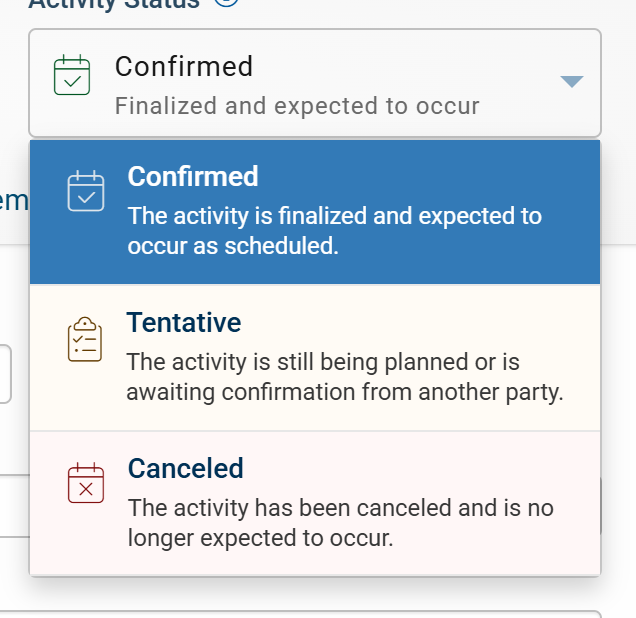
Tentative meetings are labeled on the Playbook schedule, and canceled meetings are crossed out, so no one shows up for a meeting that isn’t happening anymore.
Time, Location, and Who’s Attending
On the “Basic Info” tab, enter the meeting’s start and end time, a short title, and where it takes place (for example, your booth, a meeting room, a restaurant, or an off-site venue). If your team is working across time zones, click “Specify time zone” to note the meeting’s time zone (for example, “CT”).
Use “Tag People” to add the ExhibitDay users from your team who’ll take part in the meeting. Tagged team members get an email about the meeting, and their avatars appear on the meeting in the Playbook schedule.

Note: “Tag People” is for the ExhibitDay users in your workspace. People from outside your organization (like the customer you’re meeting with) go in the “External Attendees / Contacts” field on the meeting’s details tab.
Meeting Details: Format, Company, Attendees, and Agenda
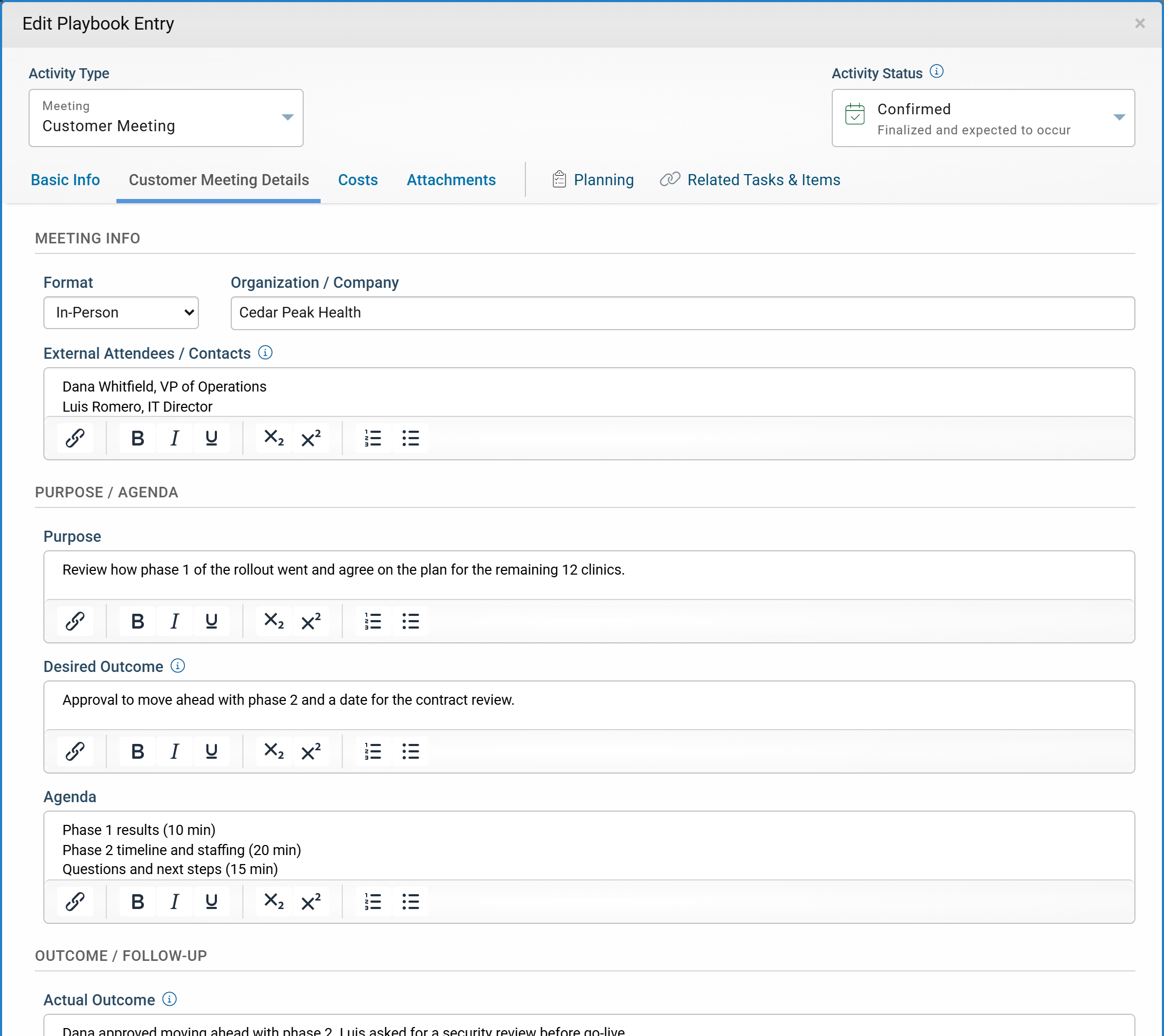
The meeting’s details tab (for example, “Customer Meeting Details”) is where you capture what the meeting is about:
- Format: In-Person, Virtual, Phone, or Hybrid.
- Organization / Company: who you’re meeting with.
- External Attendees / Contacts: the people from the other organization, such as their names and titles.
- Purpose: why the meeting is happening.
- Desired Outcome: the result you want the meeting to achieve.
- Agenda: how the meeting will run.
Note: For Internal Meetings, the “Organization / Company” and “External Attendees / Contacts” fields are hidden, since everyone in the room is on your team.
Virtual, Phone, and Hybrid Meetings
Not every meeting happens at the booth. When you set the format to Virtual, Phone, or Hybrid, a “Meeting / Join Details” field appears. Use it for the meeting link, phone number, passcode, or anything else people need in order to join.

Preparing for the Meeting (the Planning Tab)
The “Planning” tab is for the behind-the-scenes work that happens before the meeting:
- Planning Contact(s): the people coordinating or helping plan the meeting. This is for reference only; it doesn’t tag anyone or send notifications.
- Preparation Requirements: anything that needs to be arranged ahead of time, such as the room, setup, materials, or equipment.
- Planning Notes: internal notes about planning, coordination, or progress.

Capturing the Outcome and Next Steps
After the meeting, open it again and scroll down to the “Outcome / Follow-up” section of its details tab:
- Actual Outcome: the decisions, results, or agreements from the meeting.
- Next Steps: the follow-up actions or commitments that came out of it.
- Follow-up Target Date: a reference date for following up.
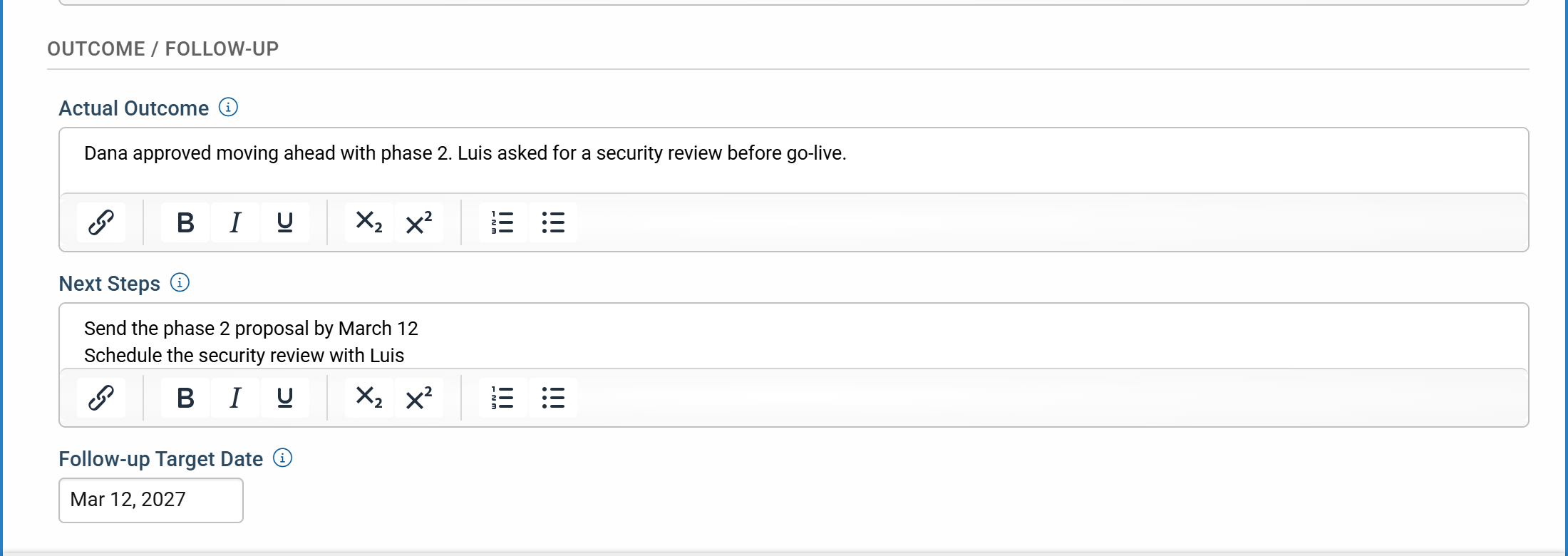
Because “Desired Outcome” and “Actual Outcome” are on the same tab, it’s easy to compare what you hoped for with what actually happened, which comes in handy when you report on how the show went.
Note: “Next Steps” and “Follow-up Target Date” are for reference. For follow-up work that you want to assign and track with due dates and reminders, create tasks. You can link them to the meeting from its “Related Tasks & Items” tab.
Reviewing a Meeting and Exporting It to PDF
Click a meeting’s title on the Playbook to open a clean, read-only view of everything you’ve entered for it. To download it as a PDF (handy for printing or for sharing a meeting brief before the show), click the “Export to PDF” icon.

More You Can Add to a Meeting
Like every Playbook entry, a meeting can also have:
- Costs: for example, a meeting room rental or catering. Playbook costs count toward the event’s budget.
- Attachments: briefing documents, presentation decks, contracts, and so on.
- Related Tasks & Items: prep tasks and other related records, linked to the meeting.
We’ll cover these, along with the rest of the Playbook, in an upcoming post.
With your meetings in the Playbook, your whole team knows where to be, who they’re meeting with, what success looks like, and what happens next, before, during, and after the show.
Don’t have an ExhibitDay account yet? Sign up for free and start planning the meetings for your next conference or trade show.